Changing a Shopify theme is a handoff between two versions of your storefront. A new homepage can look finished while a product template, app block, or buying option still needs work. Before publishing, agree on what must carry over, who will check it, and who can respond if customers encounter a problem.
Shopify's theme switching documentation separates store data from theme configuration. Products, collections, menus, pages, and blog posts remain in the admin. Theme settings, sections, wording, custom code, and available templates belong to the individual theme. Review those separately rather than assuming the new design inherits everything. Sources reviewed October 24, 2026; this is a proposed workflow, not a report of a live store migration.
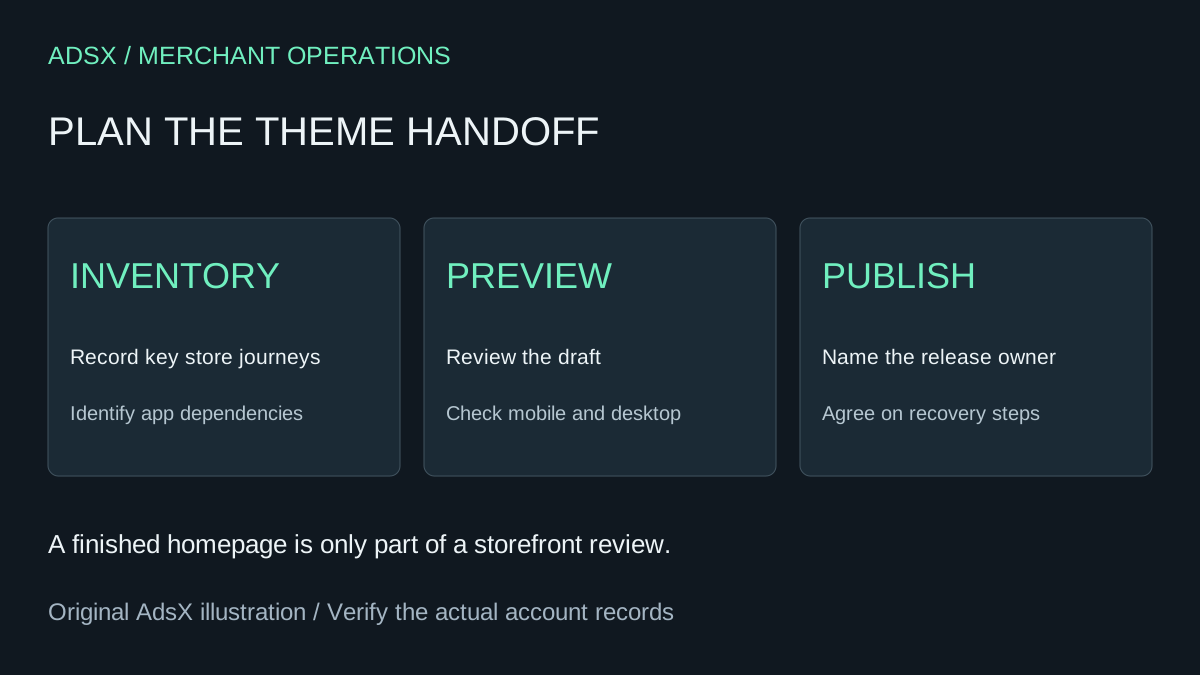
Original AdsX project planning illustration.
Make a short inventory before editing
Choose representative URLs from the current store. Include an ordinary product, a product with several options, a collection, a content page, search results, and the cart. Add any page that has special selling logic: a subscription, personalization field, booking widget, or bundle.
Write down what each page needs to do. “Looks like the old site” is difficult to approve. “The customer can select a size, see its availability, and add the correct variant” gives the reviewer a concrete task.
| Item | What to record | Who should confirm it |
|---|---|---|
| Product template | Required information and buying controls | Merchant or product lead |
| App feature | Where it appears and expected behavior | App owner or developer |
| Navigation | Main paths to products and help | Merchant |
| Custom code | Purpose, location, and replacement decision | Developer |
| Campaign landing page | Promise, destination, and active traffic source | Campaign owner |
This inventory also prevents unnecessary work. An old announcement banner may have expired months ago. Decide whether it still belongs before asking a developer to reproduce it.
Review the journey, not just the homepage
Imagine a small ceramics store moving to a cleaner design. Its best-selling mug has three sizes, and gift buyers depend on a care-instructions page. The review should follow that purchase: find the mug, select a size, read the shipping information, add it to the cart, and locate the care guidance.
Use the draft preview for layout and navigation review. Ask an authorized person to verify the checkout path with the appropriate store testing process before launch. Do not treat a shared visual preview as evidence that a payment was tested.
Check a narrow phone screen as well as a desktop. Look for clipped option labels, buttons covered by overlays, missing product images, and tables that require awkward horizontal scrolling. Record the URL and exact action for each failure so the person fixing it can reproduce the issue.
Our first-store theme comparison helps with selection. Once you have chosen a theme, keep this review focused on whether it supports your actual buying journeys.
Resolve planned changes before publishing
If your store uses Canvas, read Shopify's Canvas publishing guidance. Canvas is in early access for certain stores. Saved changes are not automatically live. Its documentation also warns that publishing a different theme removes active or planned theme changes from rollouts; those removed changes cannot be recovered.
That is a reason to involve the campaign owner before a switch. A weekend promotion may depend on a scheduled theme change that the developer did not create. Record its intended content and timing, and decide how to handle it before approving the replacement. Do not assume returning to the old theme restores every scheduled operation.
Give the release a named owner
Agree on a publishing window, the exact theme to publish, and one person who has the authority to stop the release. Shopify keeps the previous theme available after switching, but a theme change should still have a written recovery plan.
For the ceramics example, the plan could read: “Maya publishes after the product and cart checks pass. Jules checks the public mug page and navigation immediately afterward. If size selection fails, Maya restores the previous theme while the team investigates.” This is an illustrative plan, not a guarantee that republishing resolves every problem.
After publishing, open the public storefront independently of the editor and repeat the critical checks. Record what passed and what remains unresolved. If a contractor helped, finish with the collaborator access checklist so the project ends with both a working store and clear access ownership.