A Shopify collaborator request should match a job you have agreed to. Before accepting it, write down what the contractor will change, what they need to inspect, and what should stay outside the project. That short brief makes a permission request easier to assess than a list of unfamiliar switches.
Shopify's collaborator account guidance explains that collaborators are Shopify Partners whose access you manage in the admin. They do not count toward your store's user limit, and Partners must use two-step authentication. Those features support collaboration, but they do not replace your review of the person or requested permissions. Documentation reviewed October 24, 2026; no account access was changed for this article.
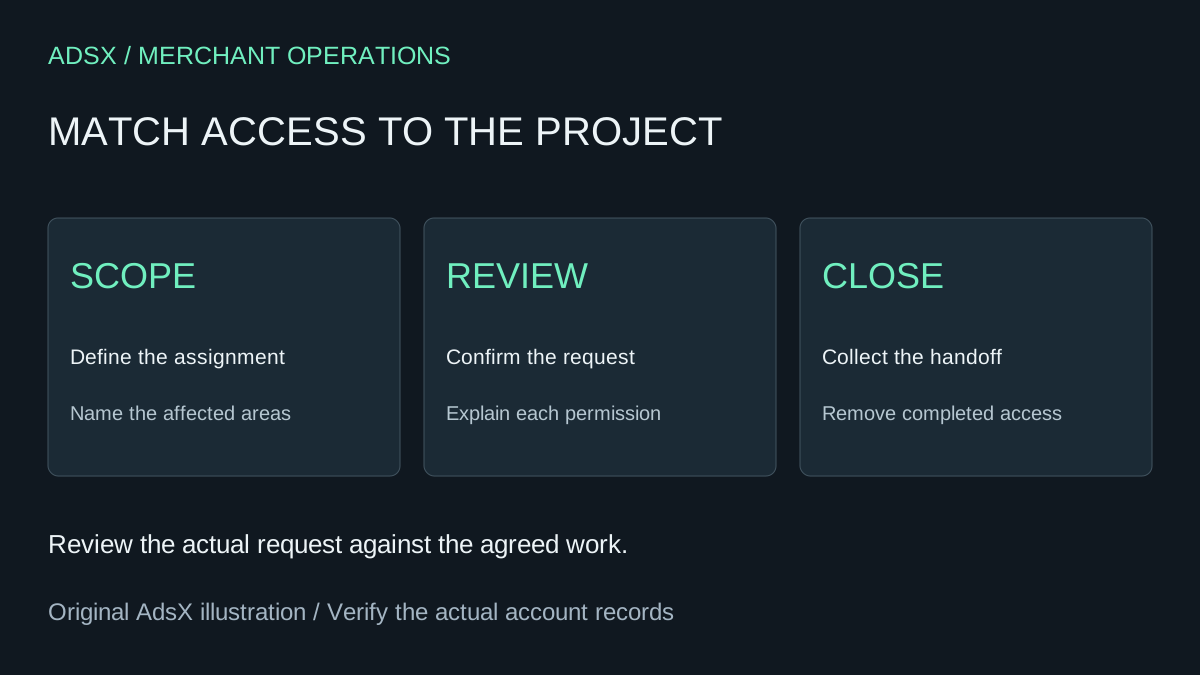
Original AdsX project planning illustration.
Turn the assignment into an access brief
For a theme project, “fix the store” is too broad. A useful assignment might say: “Correct the mobile product-image layout in the draft theme, document the change, and let the owner publish after review.” It names the area of work and makes publication responsibility explicit.
Use the following table as a discussion aid. It is not an exact permission recipe; the necessary settings depend on the work and the options shown in your admin.
| Project | What the collaborator needs to explain | Question before approval |
|---|---|---|
| Theme layout repair | Theme areas and any app dependencies | Why is access beyond the storefront needed? |
| Product copy update | Which products or content fields will change | Does the assignment include pricing or inventory? |
| App configuration | Which app and settings are involved | Will the change affect live customers? |
| Reporting review | Required reports and date range | Can a smaller set of information answer the question? |
Shopify's role examples recommend matching collaborator permissions to the project and removing access when work ends. A developer may need storefront and app access; a content assignment has a different scope. Review the actual request instead of copying someone else's permission list.
Confirm that you expected the request
Contact the contractor through the channel you already use if a request arrives unexpectedly. Match the person and business to your agreement. A familiar agency name alone is not a complete identity check.
Shopify may display contextual details about the Partner. Treat them as clues for a conversation, not a certification of their work. If the request asks for something outside your brief, ask what task requires it. The answer should describe a concrete dependency, not simply say that full access is easier.
For example, a developer adjusting spacing might discover that an app injects the affected block. That can justify revisiting the scope. It does not automatically justify unrelated customer or financial access. Record the reason for any expansion so the next reviewer can understand it.
Keep publishing responsibility separate from editing
Access review is also a chance to agree on the working process. Name the draft being edited, where review notes belong, and who signs off on the result. If changes touch a live store, agree on a window and the person available to respond.
For a larger redesign, use the theme replacement handoff checklist. It turns visual approval into a review of products, navigation, app behavior, and recovery responsibilities.
Avoid sending your own login credentials as a shortcut. The collaborator mechanism gives the project a separately managed account. Use the current Shopify admin instructions for the exact controls available to your store rather than assuming every organization has the same role-management screen.
Close the project deliberately
Before removing access, collect the final explanation of changes, any merchant-owned assets, and unresolved issues. Make sure someone on your team can maintain the result. An accepted homepage is not a complete handoff if only the contractor knows how its main widget works.
Then remove the collaborator account using Shopify's documented process. Do not leave this step dependent on remembering it several months later. Put a review date in the project plan at the start and assign it to a store administrator.
A simple closeout record might contain four lines: project completed; merchant review passed; outstanding issue assigned; collaborator access removed. If ongoing maintenance is agreed, document its scope and the next access review instead.
Collaborator access also differs from transferring ownership. If the business itself is changing hands, follow the store ownership handoff guide and Shopify's ownership process. A contractor's successful project does not make that account the new store owner.